
MKVをMP4に変換する方法?3ステップで無料、ロスレスで再生互換性問題を解決
デジタル時代において、私たちはさまざまなビデオ形式の互換性問題によく遭遇します。特にMKV形式のビデオは、ビデオとオーディオの品質で優れた性能を発揮する一方で、モバイルデバイス、テレビプレイヤー、その他のプラットフォームでの互換性が頭痛の種となることがよくあります。今日は、無料のオンラインツールを使用してわずか3ステップでMKV形式をMP4形式に簡単に変換し、再生互換性問題を完全に解決する方法を詳しく説明します。
なぜMKVをMP4形式に変換するのか?
MKVをMP4に変換する主な理由は2つあります:より良い互換性とより簡単な処理です。
- 互換性:MP4は「万能キー」 これが最も重要で一般的な理由です。MP4は業界標準であり、ほぼすべてのハードウェアとソフトウェアで広くサポートされています。
デバイスサポート:
- MP4:iPhone、iPad、Androidスマートフォン、スマートテレビ(Sony、Samsung、TCLなど)、ゲーム機(PlayStation、Xbox)、タブレット、カーオーディオなどで、変換なしで直接再生可能。
- MKV:上記の多くのデバイスはMKVファイルを直接認識または再生できず、ビデオは再生できても埋め込み字幕やオーディオトラックを読み込めない場合があります。専用プレイヤーまたは変換が必要です。
ソフトウェアとプラットフォームサポート:
- MP4:YouTube、Bilibili、Weiboなどの動画サイトで推奨されるアップロード形式です。主流のビデオ編集ソフトウェア(Adobe Premiere、Final Cut Pro、DaVinci Resolve、さらには新しいバージョンのCapCutなど)はMP4をネイティブで非常によくサポートしています。
- MKV:多くのプロフェッショナル編集ソフトウェアはMKVファイルを直接インポートできず、形式がサポートされていないというプロンプトが表示されます。編集する前にMP4などの編集に適した形式に変換する必要があります。
ストリーミング再生:多くのホームメディアサーバー(Plex、Jellyfinなど)がMKVをクライアントに送信する際、クライアントがサポートしていない場合、サーバーは「リアルタイムトランスコーディング」を実行し、サーバーのCPUリソースを大幅に消費します。事前にMP4に変換しておくと、サーバーは通常、より小さな負荷で直接「ストリーミング」できます。変換はブラウザ完結のオンラインMKV→MP4変換ツールで手軽に行えます。
- 便利な処理と共有
- ファイル管理:MP4の構造は比較的シンプルで、メタデータ(カバー、タイトル、章など)のサポートが良く、さまざまなファイルマネージャーでより標準的に表示されます。
- 編集フレンドリー:上記のように、変換は編集ワークフローに入るための必要なステップです。
MKV形式の利点と制限
MKV(Matroska Video)は優れたマルチメディアコンテナ形式で、複数のビデオエンコーディング、オーディオエンコーディング、字幕トラックをカプセル化でき、HDさらには4K超HDビデオをサポートします。しかし、MKV形式の広範な互換性は弱点です:
- モバイルデバイスサポートの制限:多くのスマートフォンやタブレットはMKV形式をネイティブでサポートしていません
- テレビプレイヤーの互換性が悪い:一部のスマートテレビはMKVファイルを直接再生できません
- ウェブ再生が困難:HTML5ビデオタグはMKVを十分にサポートしていません
- ソーシャルメディアの制限:ほとんどのビデオプラットフォームはMKV形式のアップロードを受け付けません
MP4形式の普遍的な利点
対照的に、MP4形式は比類のない互換性を持っています:
- フルプラットフォームサポート:ほぼすべてのデバイスとプレイヤーがMP4をサポートします
- ウェブフレンドリー:HTML5はMP4形式をネイティブでサポートします
- 比較的小さなファイル:同じビデオ品質で、MP4ファイルは通常よりコンパクトです
- ストリーミング最適化:高速起動とプログレッシブ再生をサポートします
Free Online MKV to MP4 Converter Recommendation
Recommend using MKV to MP4 Online with the following outstanding advantages:
Core Features
- Completely Free: No registration, no payment, no feature limitations
- Smart Dual-Mode Conversion:
- Lossless Copy Mode: Directly copies video streams, maintains original quality, extremely fast conversion speed
- Re-encoding Mode: Re-encodes video, can optimize file size, suitable for network transmission
- Local Secure Processing: Files are processed locally in the browser, no need to upload to servers, protecting privacy security
- Supports Batch Conversion: Can process multiple files simultaneously, improving work efficiency
- No Software Installation: Ready to use by opening the webpage, supports all mainstream browsers
Technical Advantages
- Uses FFmpeg core technology to ensure conversion quality
- Supports hardware acceleration to improve conversion speed
- Intelligently identifies video encoding, automatically selects best conversion parameters
- Supports multiple video encoding formats (H.264, H.265, AV1, etc.)
3-Step MKV to MP4 Conversion Guide
Step 1: Select and Upload MKV File
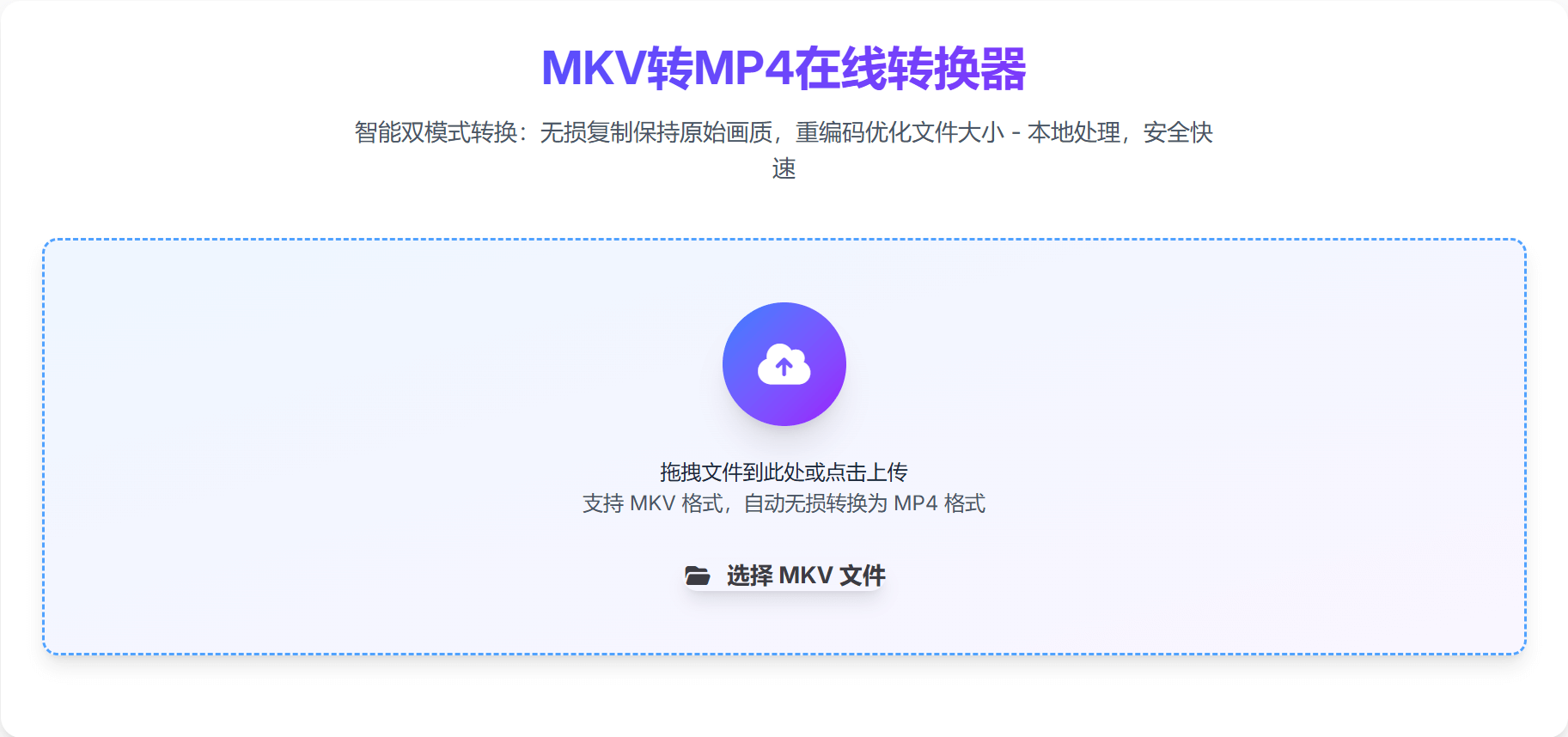
Visit the online converter page, you'll see a clean and intuitive interface. Click the upload area or directly drag and drop the MKV file to the designated area to start. Supported file size is usually up to several GB, meeting most video conversion needs.
Notes:
- Ensure stable network connection
- For large file conversion, recommend using Chrome or Firefox browsers
- Avoid using special characters in file names
Step 2: Select Conversion Mode
This is a critical step where you need to choose the appropriate conversion mode based on actual needs: 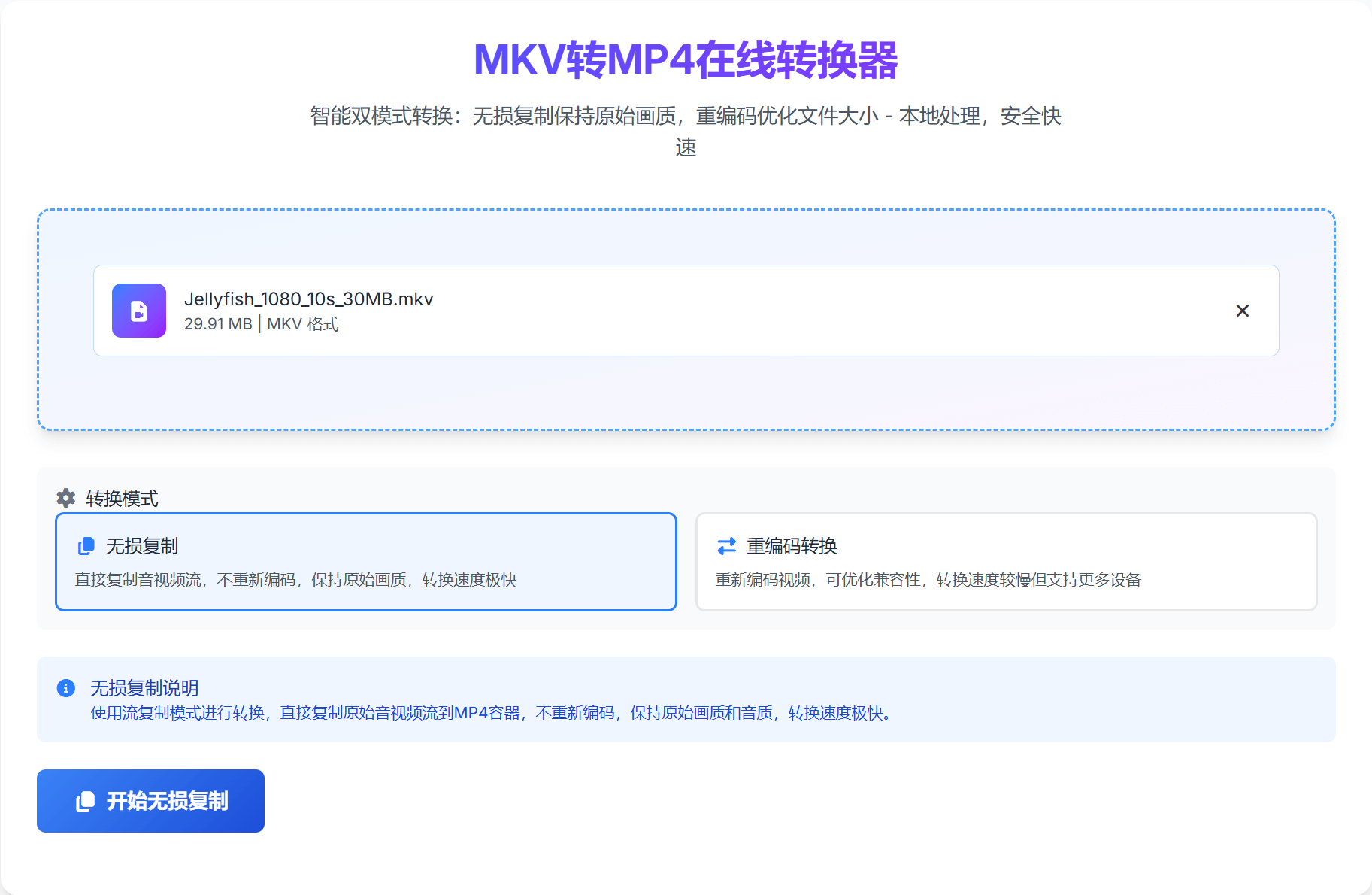
Lossless Copy Mode (Recommended)
- Applicable Scenarios: Extremely high video quality requirements, file size is not a concern
- Conversion Speed: Extremely fast, usually only takes a few seconds to a few minutes
- Quality Retention: 100% original quality, absolutely no loss
- File Size: Basically the same as the original file
- Technical Principle: Directly copies video and audio streams, changes container format
Re-encoding Mode
- Applicable Scenarios: Need to reduce file size, suitable for network transmission and mobile device playback
- Conversion Speed: Relatively slower, depends on video length and resolution
- Quality Adjustment: Can adjust quality through parameters
- File Size: Usually 30%-70% smaller than the original file
- Technical Principle: Re-encodes video content, can compress and optimize
Step 3: Save Converted MP4 File
After conversion is complete, you can directly save the converted MP4 file, or choose to continue converting other files. 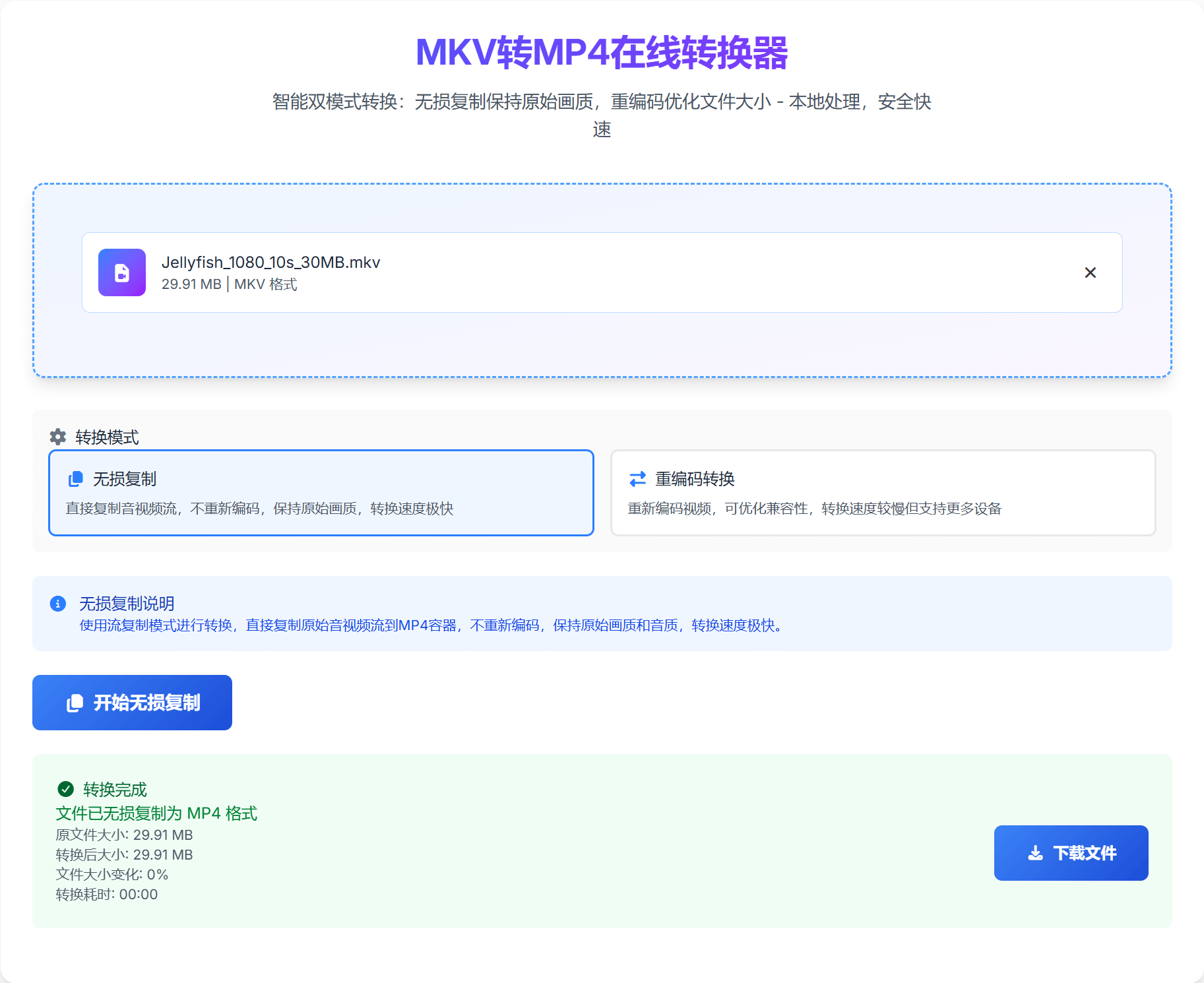
Saving Recommendations:
- Save promptly after conversion, files are not permanently stored on the server
- Recommend using stable network environment to save large files
- You can preview file information before saving to ensure successful conversion
FAQ
1. Will the converted MP4 file quality decrease?
This depends on the selected conversion mode:
- Lossless Copy Mode: Quality will not decrease at all, maintaining 100% original quality
- Re-encoding Mode: May have slight quality loss, but you can balance quality and file size by adjusting parameters
2. What factors affect conversion speed?
Main influencing factors include:
- File size and video duration
- Selected conversion mode
- Device performance and network status
- Browser processing capability
3. Does it support other video format conversions?
Yes, most online converters support conversions between multiple video formats, including mainstream formats like AVI, MOV, WMV, FLV, etc.
4. Possible reasons for conversion failure and solutions
Common Causes:
- Unstable network connection
- Corrupted or unsupported file format
- Browser compatibility issues
- File too large exceeds processing limit
Solutions:
- Check network connection
- Try using another browser
- Process large files in segments
- Check file integrity
Advanced Usage Tips
Batch Conversion Strategy
If you have multiple MKV files to convert, it's recommended:
- First test with a small file to ensure satisfactory conversion results
- Determine the best conversion mode based on test results
- When batch processing, recommend processing in batches to avoid processing too many files simultaneously
- Pay attention to browser memory usage, restart browser if necessary
File Size Optimization Tips
When using re-encoding mode, you can optimize file size through:
- Adjust Bitrate: Choose appropriate bitrate based on usage scenario
- Resolution Adjustment: Mobile devices can appropriately lower resolution
- Frame Rate Setting: 24-30fps is sufficient for ordinary videos
- Audio Encoding: AAC encoding is usually more efficient than MP3
Quality Control Points
To ensure conversion quality, please note:
- Source File Check: Confirm source file is not corrupted before conversion
- Parameter Settings: Set conversion parameters reasonably based on needs
- Post-Conversion Check: Check audio-video synchronization after conversion
- Backup Important Files: Recommend backing up important files before conversion
Related Tool Recommendations
Besides the MKV to MP4 converter, you might also need:
- M3U8 to MP4 Converter: Supports MP4 conversion of AES-128 encrypted and multi-bitrate M3U8 files
- M3U8 Player Online: Modern playback solution based on HLS.js, supports quality switching and stream info display
- FLV & RTMP Player Online: Streaming media playback solution based on flv.js, supports RTMP and HTTP-FLV formats
Summary
Through the above 3-step operation, you can easily convert MKV format to MP4 format, completely solving playback compatibility issues. Choosing the appropriate conversion mode can both meet quality requirements and optimize file size. Using free online converters is not only simple to operate but also secure and reliable, making it an ideal choice for handling video format conversion.
Remember, the core principles when choosing conversion mode are:
- Pursue Quality → Choose Lossless Copy Mode
- Pursue Efficiency → Choose Re-encoding Mode
- When Uncertain → First test both modes with a small file
I hope this article can help you better handle video format conversion issues. If you encounter any problems during use, welcome to leave comments for discussion.
Related Keywords: MKV to MP4 online tool, free video format conversion, lossless video conversion, MKV compatibility issues solution, video transcoding tool, online format converter, video processing tool, file format conversion.