
How to Convert MKV to MP4? Complete in 3 Steps for Free, Losslessly Solve Playback Compatibility Issues
In the digital age, we often encounter various video format compatibility issues. Especially with MKV format videos, while they perform excellently in video and audio quality, their compatibility on mobile devices, TV players, and other platforms often causes headaches. Today, I'll detail how to easily convert MKV format to MP4 format using free online tools in just 3 steps, completely solving playback compatibility issues.
Why Convert MKV to MP4 Format?
There are two main reasons for converting MKV to MP4: better compatibility and easier handling. To convert, use our online MKV to MP4 tool — processed locally in your browser with no quality loss.
- Compatibility: MP4 is the "Universal Key" This is the most important and common reason. MP4 is an industry standard, widely supported by almost all hardware and software.
Device Support:
- MP4: Can be played directly on iPhone, iPad, Android phones, smart TVs (Sony, Samsung, TCL, etc.), game consoles (PlayStation, Xbox), tablets, car players without any conversion.
- MKV: Many of the above devices cannot directly recognize or play MKV files, or can play video but cannot load embedded subtitles and audio tracks. A dedicated player or conversion is needed.
Software and Platform Support:
- MP4: Is the recommended upload format for video sites like YouTube, Bilibili, Weibo. Mainstream video editing software (such as Adobe Premiere, Final Cut Pro, DaVinci Resolve, and even newer versions of CapCut) natively supports MP4 very well.
- MKV: Many professional editing software cannot directly import MKV files and will prompt that the format is not supported. Need to convert to editing-friendly formats like MP4 before editing.
Streaming Playback: Many home media servers (such as Plex, Jellyfin) when transmitting MKV to clients, if the client doesn't support it, the server will perform "real-time transcoding," which greatly consumes server CPU resources. If converted to MP4 in advance, the server can usually directly "stream" with smaller load.
- Convenient Processing and Sharing
- File Management: MP4 structure is relatively simple, with good metadata support (such as cover, title, chapters), displaying more standardly in various file managers.
- Editing Friendly: As mentioned above, conversion is a necessary step to enter the editing workflow.
Advantages and Limitations of MKV Format
MKV (Matroska Video) is an excellent multimedia container format that can encapsulate multiple video encodings, audio encodings, and subtitle tracks, supporting HD even 4K ultra-HD videos. However, the broad compatibility of MKV format is a weakness:
- Limited Mobile Device Support: Many phones and tablets don't natively support MKV format
- Poor TV Player Compatibility: Some smart TVs cannot directly play MKV files
- Difficult Web Playback: HTML5 video tag doesn't support MKV well enough
- Social Media Restrictions: Most video platforms don't accept MKV format uploads
Universal Advantages of MP4 Format
In contrast, MP4 format has unparalleled compatibility:
- Full Platform Support: Almost all devices and players support MP4
- Web Friendly: HTML5 natively supports MP4 format
- Relatively Small Files: Under the same video quality, MP4 files are usually more compact
- Streaming Optimized: Supports fast startup and progressive playback
Free Online MKV to MP4 Converter Recommendation
Recommend using MKV to MP4 Online with the following outstanding advantages:
Core Features
- Completely Free: No registration, no payment, no feature limitations
- Smart Dual-Mode Conversion:
- Lossless Copy Mode: Directly copies video streams, maintains original quality, extremely fast conversion speed
- Re-encoding Mode: Re-encodes video, can optimize file size, suitable for network transmission
- Local Secure Processing: Files are processed locally in the browser, no need to upload to servers, protecting privacy security
- Supports Batch Conversion: Can process multiple files simultaneously, improving work efficiency
- No Software Installation: Ready to use by opening the webpage, supports all mainstream browsers
Technical Advantages
- Uses FFmpeg core technology to ensure conversion quality
- Supports hardware acceleration to improve conversion speed
- Intelligently identifies video encoding, automatically selects best conversion parameters
- Supports multiple video encoding formats (H.264, H.265, AV1, etc.)
3-Step MKV to MP4 Conversion Guide
Step 1: Select and Upload MKV File

Visit the online converter page, you'll see a clean and intuitive interface. Click the upload area or directly drag and drop the MKV file to the designated area to start. Supported file size is usually up to several GB, meeting most video conversion needs.
Notes:
- Ensure stable network connection
- For large file conversion, recommend using Chrome or Firefox browsers
- Avoid using special characters in file names
Step 2: Select Conversion Mode
This is a critical step where you need to choose the appropriate conversion mode based on actual needs: 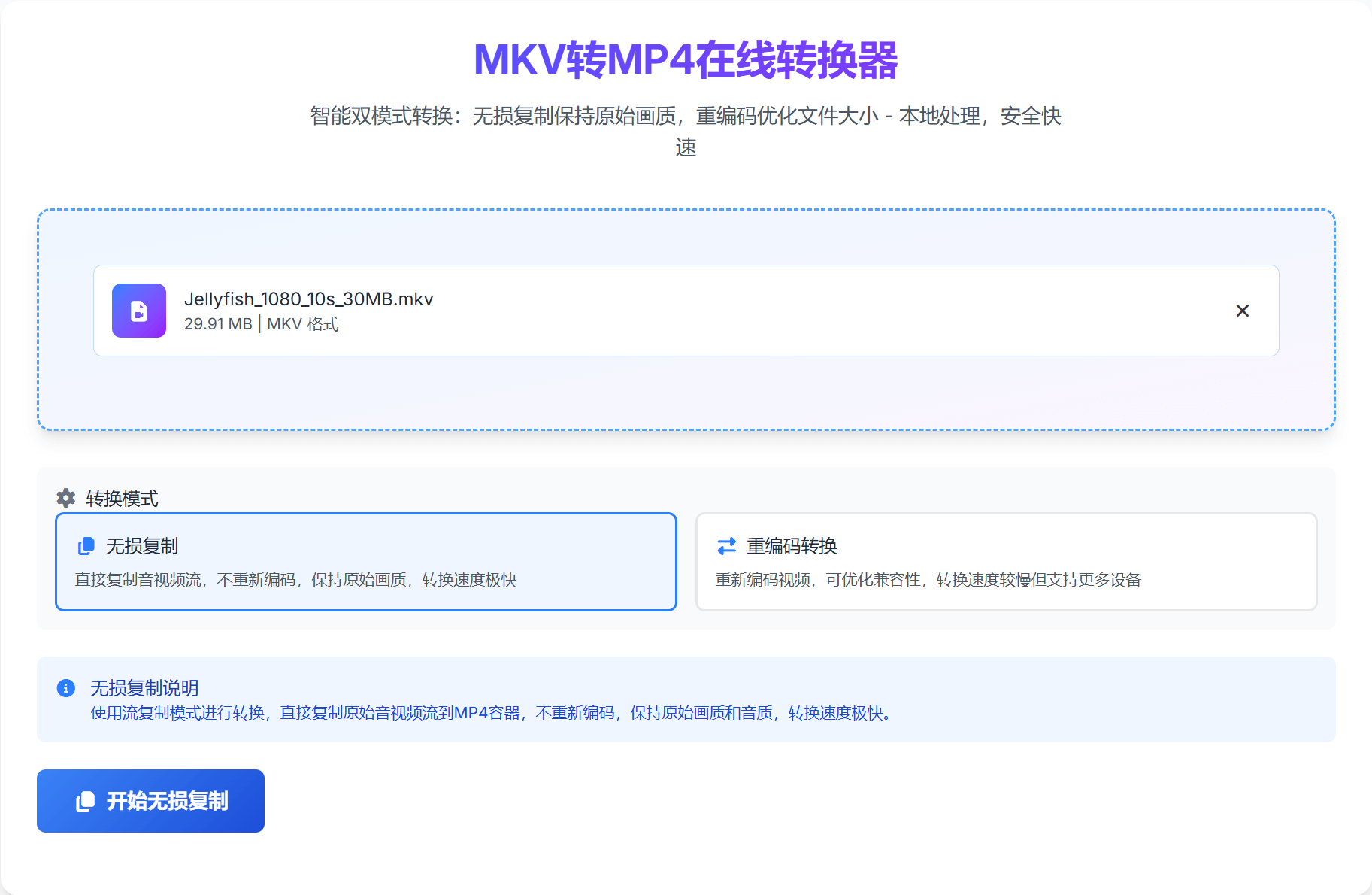
Lossless Copy Mode (Recommended)
- Applicable Scenarios: Extremely high video quality requirements, file size is not a concern
- Conversion Speed: Extremely fast, usually only takes a few seconds to a few minutes
- Quality Retention: 100% original quality, absolutely no loss
- File Size: Basically the same as the original file
- Technical Principle: Directly copies video and audio streams, changes container format
Re-encoding Mode
- Applicable Scenarios: Need to reduce file size, suitable for network transmission and mobile device playback
- Conversion Speed: Relatively slower, depends on video length and resolution
- Quality Adjustment: Can adjust quality through parameters
- File Size: Usually 30%-70% smaller than the original file
- Technical Principle: Re-encodes video content, can compress and optimize
Step 3: Save Converted MP4 File
After conversion is complete, you can directly save the converted MP4 file, or choose to continue converting other files. 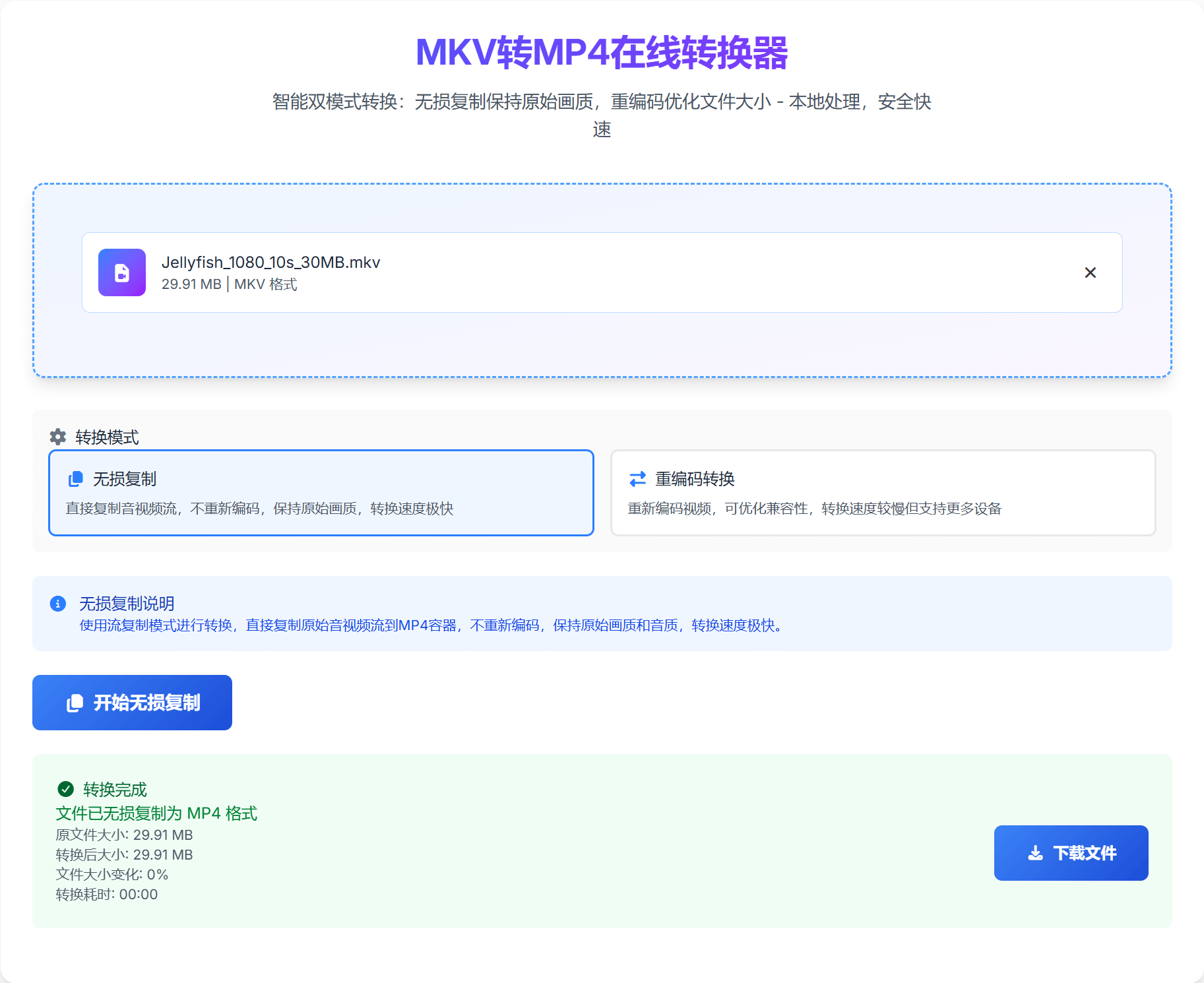
Saving Recommendations:
- Save promptly after conversion, files are not permanently stored on the server
- Recommend using stable network environment to save large files
- You can preview file information before saving to ensure successful conversion
FAQ
1. Will the converted MP4 file quality decrease?
This depends on the selected conversion mode:
- Lossless Copy Mode: Quality will not decrease at all, maintaining 100% original quality
- Re-encoding Mode: May have slight quality loss, but you can balance quality and file size by adjusting parameters
2. What factors affect conversion speed?
Main influencing factors include:
- File size and video duration
- Selected conversion mode
- Device performance and network status
- Browser processing capability
3. Does it support other video format conversions?
Yes, most online converters support conversions between multiple video formats, including mainstream formats like AVI, MOV, WMV, FLV, etc.
4. Possible reasons for conversion failure and solutions
Common Causes:
- Unstable network connection
- Corrupted or unsupported file format
- Browser compatibility issues
- File too large exceeds processing limit
Solutions:
- Check network connection
- Try using another browser
- Process large files in segments
- Check file integrity
Advanced Usage Tips
Batch Conversion Strategy
If you have multiple MKV files to convert, it's recommended:
- First test with a small file to ensure satisfactory conversion results
- Determine the best conversion mode based on test results
- When batch processing, recommend processing in batches to avoid processing too many files simultaneously
- Pay attention to browser memory usage, restart browser if necessary
File Size Optimization Tips
When using re-encoding mode, you can optimize file size through:
- Adjust Bitrate: Choose appropriate bitrate based on usage scenario
- Resolution Adjustment: Mobile devices can appropriately lower resolution
- Frame Rate Setting: 24-30fps is sufficient for ordinary videos
- Audio Encoding: AAC encoding is usually more efficient than MP3
Quality Control Points
To ensure conversion quality, please note:
- Source File Check: Confirm source file is not corrupted before conversion
- Parameter Settings: Set conversion parameters reasonably based on needs
- Post-Conversion Check: Check audio-video synchronization after conversion
- Backup Important Files: Recommend backing up important files before conversion
Related Tool Recommendations
Besides the MKV to MP4 converter, you might also need:
- M3U8 to MP4 Converter: Supports MP4 conversion of AES-128 encrypted and multi-bitrate M3U8 files
- M3U8 Player Online: Modern playback solution based on HLS.js, supports quality switching and stream info display
- FLV & RTMP Player Online: Streaming media playback solution based on flv.js, supports RTMP and HTTP-FLV formats
Summary
Through the above 3-step operation, you can easily convert MKV format to MP4 format, completely solving playback compatibility issues. Choosing the appropriate conversion mode can both meet quality requirements and optimize file size. Using free online converters is not only simple to operate but also secure and reliable, making it an ideal choice for handling video format conversion.
Remember, the core principles when choosing conversion mode are:
- Pursue Quality → Choose Lossless Copy Mode
- Pursue Efficiency → Choose Re-encoding Mode
- When Uncertain → First test both modes with a small file
I hope this article can help you better handle video format conversion issues. If you encounter any problems during use, welcome to leave comments for discussion.
Related Keywords: MKV to MP4 online tool, free video format conversion, lossless video conversion, MKV compatibility issues solution, video transcoding tool, online format converter, video processing tool, file format conversion.