
Beginner's Guide: How to Watch FLV/RTMP Live Streams with a Web Player (with Screenshot Tips)
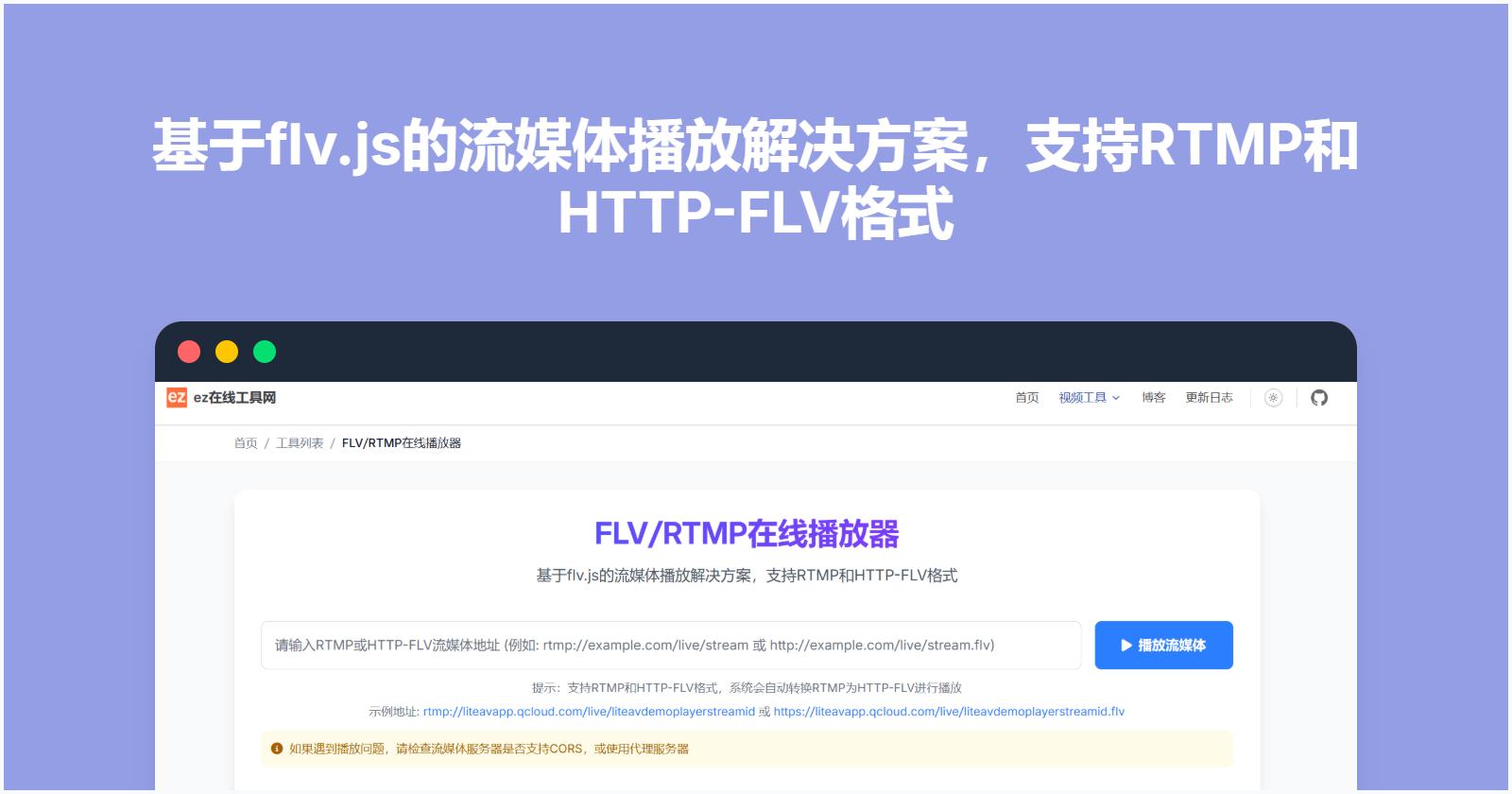
This comprehensive guide teaches beginners how to watch FLV and RTMP format live streams using a simple web player. Content covers live streaming principles, player selection, step-by-step tutorials, and exclusive tips for capturing live stream screenshots without professional software. Easily solve live stream viewing challenges!
Introduction: Why Do You Need This Tutorial?
In today's world where live streaming is ubiquitous, you'll often encounter special live stream links. They're not the familiar TikTok, Bilibili, or Huya links we know, but rather addresses ending with rtmp:// or .flv. For friends unfamiliar with technology, these links are like a door without a key, leaving you with no idea where to start.
Have you ever encountered these situations?
A friend shared a surveillance camera's RTMP live stream address, but you didn't know how to open it. You wanted to watch a niche event's FLV live stream, but clicking the link directly in your browser had no response.
You needed to preserve evidence for online meetings or courses, but struggled with quickly taking screenshots on the live stream page. Don't worry, this article is prepared for you! Starting from scratch, setting aside complex technical jargon, and using the most accessible language and detailed steps, we'll help you easily master the core methods of watching FLV/RTMP live streams with a web player, and become a screenshot pro.
Fundamentals — Quick Understanding of FLV and RTMP Live Streaming
Before we get hands-on, spend a few minutes understanding these two "familiar strangers." Knowing what they are will help you better understand the operational logic that follows.
1. What is FLV Live Streaming?
FLV is a video file format. What we call "FLV live streaming" doesn't refer to a complete FLV file, but rather the server continuously generating small FLV video segments, like flowing water, pushing them to the player. The player downloads and plays simultaneously, achieving the "live streaming" effect. Its links typically end with .flv. The FLV format has good compatibility and was very popular in early live streaming.
2. What is RTMP Live Streaming?
RTMP is a professional, low-latency live streaming transmission protocol. It's like establishing a "dedicated data line" between the player and the server, with data flowing stably and rapidly on this line. RTMP is the "big brother" in the live streaming field, especially widely used in scenarios with extremely high real-time requirements like game streaming and broadcasting-grade live streaming. Its links always start with rtmp:// or rtmps://.
3. Why Can't Browsers Play Directly?
Popular modern browsers like Chrome and Firefox have discontinued support for Flash plugins (Flash was retired in 2020) to achieve higher efficiency and security, while RTMP protocol and FLV streams historically relied heavily on Flash. Therefore, when you have an RTMP address, directly pasting it into the browser address bar definitely won't play.
The solution is: Use a "universal" web player that supports these formats.
Core Tools — Choose Your "Universal" Web Player
You need a player that can understand RTMP and FLV language. Here are several excellent and free web players, all based on modern HTML5 technology, requiring no plugin installation—just open the webpage to use.
1. Art Player
A powerful player with a modern interface, with good support for FLV and RTMP, and beautiful aesthetics.
2. DPlayer
A highly-regarded domestic open-source player with simple configuration, comprehensive documentation, and an active community.
3. Chimee
An extensible H5 player developed by 75 Team, also supporting streaming media playback.
4. FLV/RTMP Online Player
This tutorial will demonstrate using the FLV/RTMP Online Player because it's very beginner-friendly and the demo page has complete functionality.
Practical Implementation — Step-by-Step Guide to Playing FLV/RTMP Live Streams
Follow these steps and you'll be successfully watching live streams within minutes.
Preparation
A computer with internet access (Windows or Mac both work).
The FLV or RTMP live stream address you've obtained.
A modern browser (such as Google Chrome, Microsoft Edge).
Step 1: Open the FLV/RTMP Online Player Page
To avoid the complexity of local environment setup, we recommend directly using the demo page provided by the FLV/RTMP Online Player. This page has already integrated all necessary technical support.
Open your browser.
Enter the following URL in the address bar and visit:
https://ezwebtools.net/en/rtmp-player, the opened page looks like this image: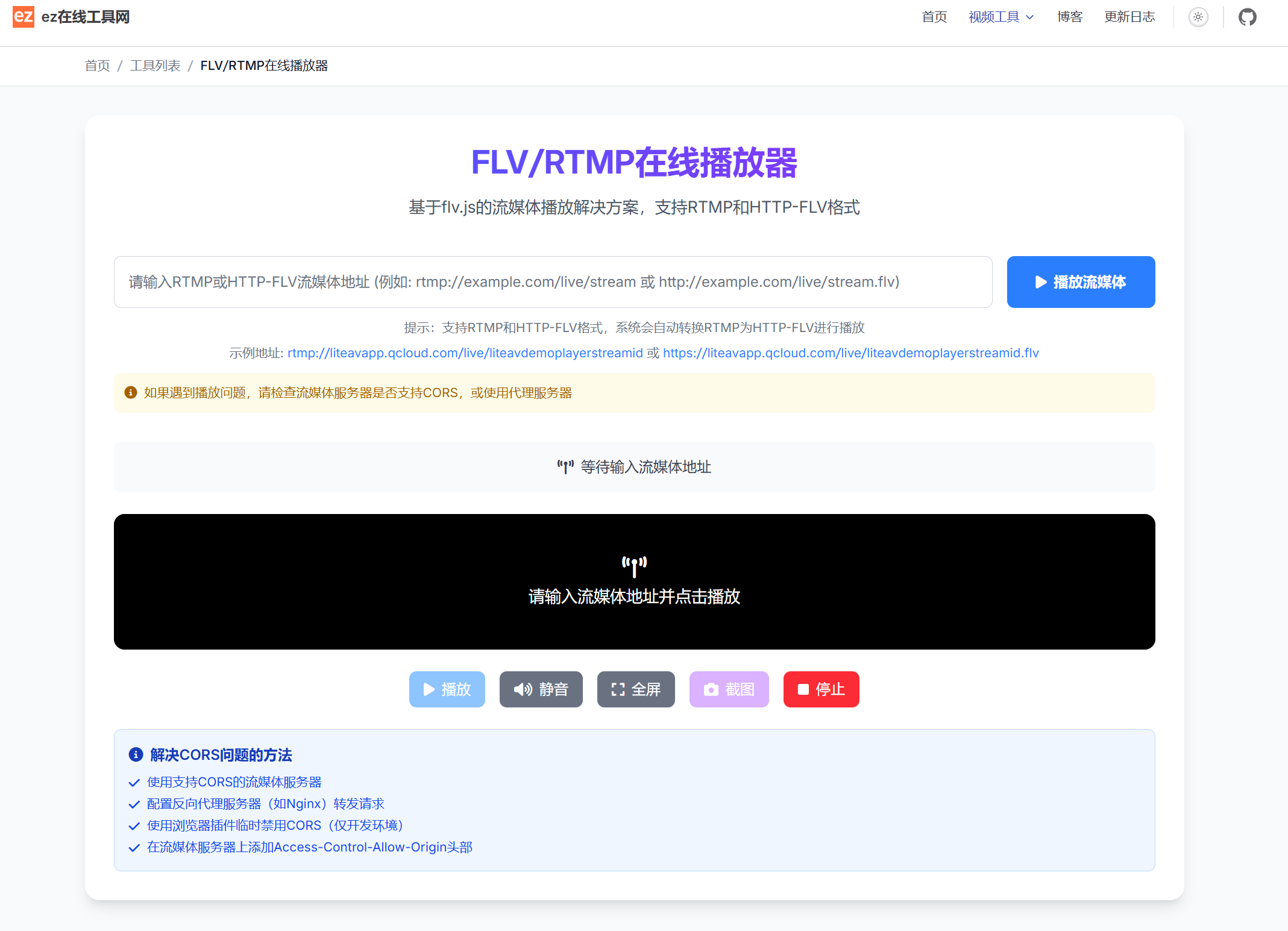
Step 2: Configure and Play FLV Live Stream
Suppose you have an FLV live stream address, for example: http://example.com/live/stream.flv On the FLV/RTMP Online Player official page, scroll down and find the sample address next to the "Example" button.

Click the Play Stream button and wait a moment. If the live stream address is valid and the network is smooth, the player will start loading and playing the live content! You can use the control bar below the player to pause, play, adjust volume, capture screenshots, and perform other operations.
Advanced Tips: One-Click Screenshot to Save Memorable Moments
In addition to playback, the FLV/RTMP Online Player has another very practical feature—one-click screenshot. Whether you want to save exciting moments from a live stream or need to capture surveillance footage as a record, it's incredibly easy.
Operation method:
- When the live stream is playing normally, move your mouse over the video area, and the playback control bar will appear below.
- Find an icon similar to a camera on the control bar—this is the screenshot button.
- When the frame you want to capture appears, gently click this button.
- After clicking, the screenshot will immediately and automatically download to your computer (usually saved in the "Downloads" folder), as a clear PNG format image.

Tips: The screenshot feature is perfect for:
- Archive and Record: Save important information or moments from live streams.
- Troubleshooting: When issues occur during live streaming, screenshots facilitate communication with technical personnel.
- Content Sharing: Quickly capture exciting frames to share with others.
Common Issues and Troubleshooting (Q&A)
Q: After clicking Load, the player stays black screen with spinning loading circle?
A: First, check whether your live stream address is completely correct without extra spaces. Second, the live stream may have ended or currently has no content. Finally, it could be a network issue or the server has restricted your IP access.
Q: Error message appears, such as "Network Error"?
A: This is usually a network connection issue. Please check your network connection, or confirm whether the live stream requires a specific network environment (such as a corporate intranet) to access.
Q: Video but no audio?
A: First check if the player and computer volume are turned on. If confirmed, the live stream itself may not contain an audio track, or the audio encoding format is uncommon and the player cannot decode it.
Q: Is this tool paid?
A: Completely free! This is a free online tool. You can use playback and screenshot features without limits, and no registration or payment is required.
Q: Can it be used on mobile devices too?
A: Absolutely! The player supports responsive design and adapts perfectly for normal use on mobile and tablet browsers.
Summary and Best Practices
Through this tutorial, you have now mastered:
Theoretical Foundation: Understood the basic concepts of FLV and RTMP live streaming.
Core Skills: Learned to use online web players like DPlayer to play FLV and RTMP live streams.
Advanced Techniques: Mastered methods for taking screenshots of live streaming content on web pages, easily saving exciting moments from live streams through the screenshot feature.
Best Practice Recommendations:
Bookmark the player page: Add the FLV/RTMP Online Player to your browser bookmarks for convenient access anytime.
Validate stream addresses: Before attempting playback, ensure your stream address is complete and valid. You can also try our site's M3U8 player online .
Respect copyright and privacy: Please only operate on live streaming content you have the right to watch and screenshot, respecting others' copyright and privacy.